
Environment & Dependencies
When you open a project, OOMOL Studio starts a Linux container in the background. Your project runs inside that container, isolated from your host machine.
Each project has its own environment, so code and dependencies from different projects do not interfere with one another or with your computer.
When you delete a project, its container is removed as well. Your computer and other projects remain unaffected.
Container Environment
The container created for a new project is intentionally minimal. To keep startup fast, only required software is installed by default. If you need extra system commands or utilities, such as netcat, install them yourself inside the container.
On first load, the container runs the script defined under script.bootstrap in package.oo.yaml:
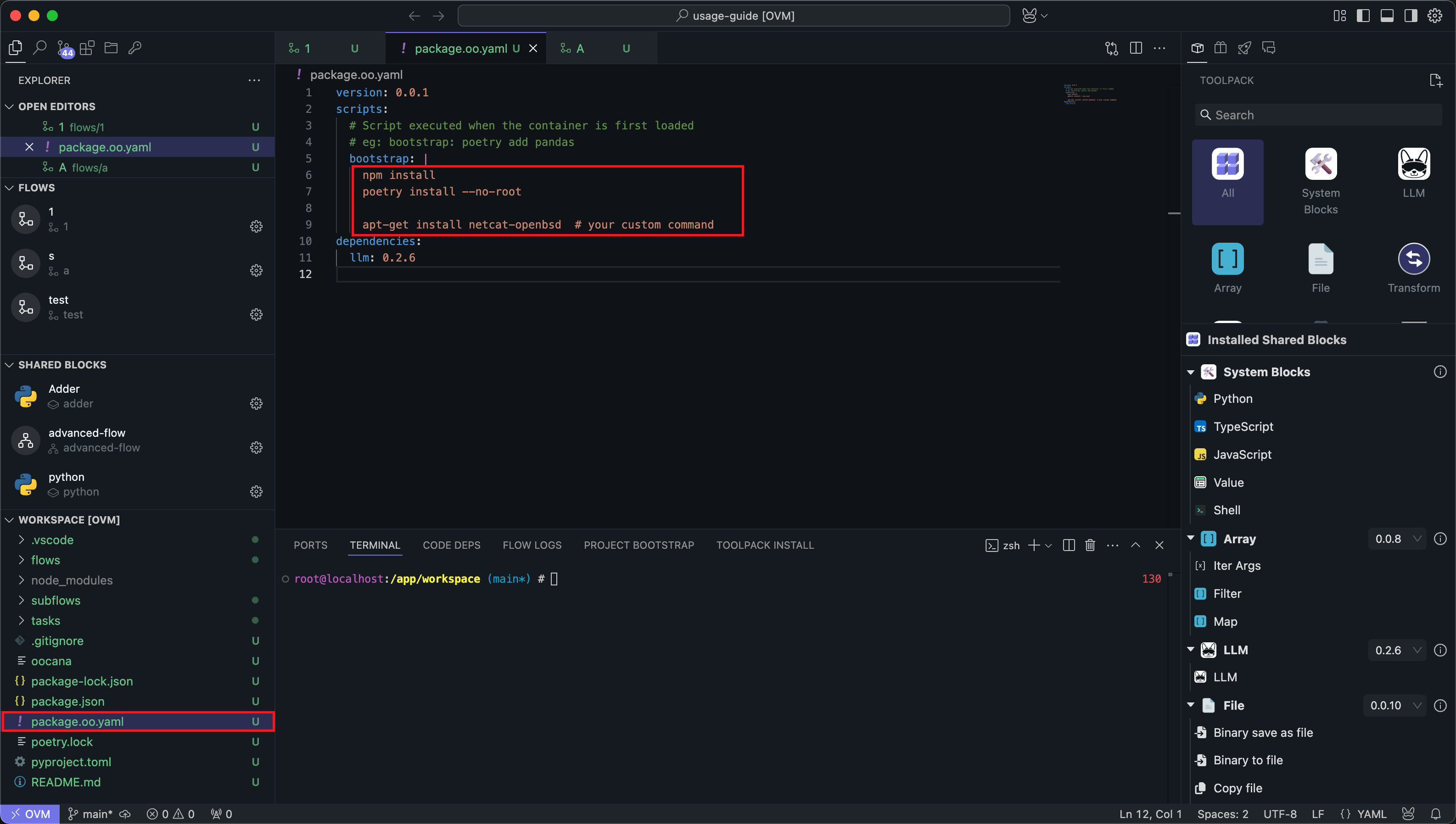
You can install system-level dependencies in that script. The script itself is written in shell.
The default script is used to install dependencies for Node.js and Python code. Please do not delete it, as doing so will cause the code to fail to run.
After editing the bootstrap script, use the restart button in the Project Initialization section of the bottom panel to run script.bootstrap again:
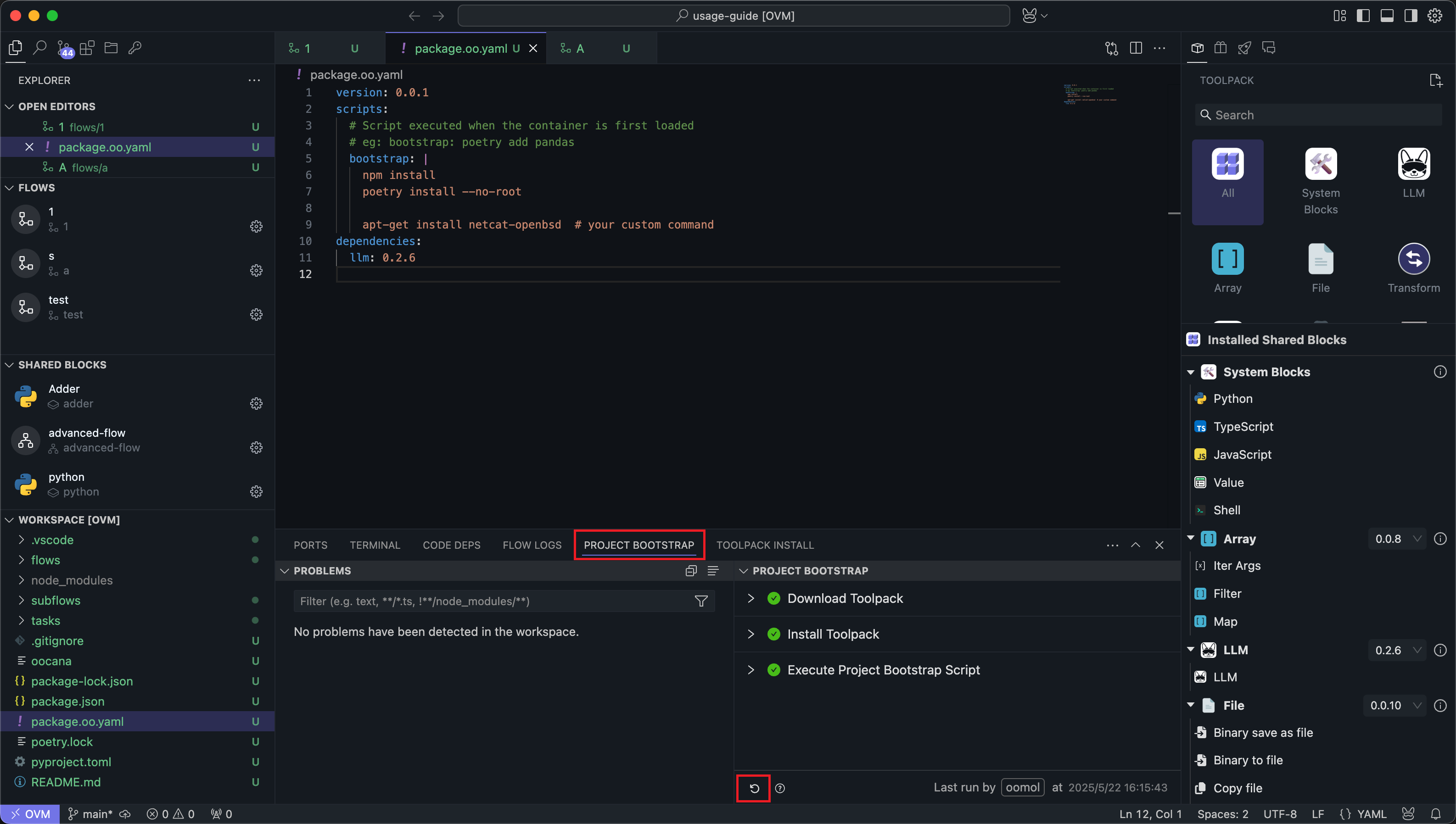
When you publish a package, this bootstrap script is distributed with it. Other users who open your project will run the same script to prepare the environment.
Once that bootstrap step succeeds, the project environment is ready and you can start authoring workflows.
Code Dependencies
When writing code, you will often need third-party libraries. There are several ways to add them:
Built-In Fusion SDK
oomol-fusion-sdk is integrated into OOMOL Studio by default.
That means when you build Scriptlet Blocks or Task Blocks inside Studio, you can usually use the Fusion SDK directly without installing it first.
This is the recommended path when:
- you want to call third-party capabilities already exposed through OOMOL Fusion
- you want to package those calls into reusable blocks
- you want authentication to use the OOMOL runtime token flow
If you are running outside Studio, or if your own app needs an explicitly managed SDK version, install it like a normal dependency instead.
Related docs:
Code Dependency Management
In the Code Dependency Management section of the bottom panel, search for dependencies for the relevant language and install them.
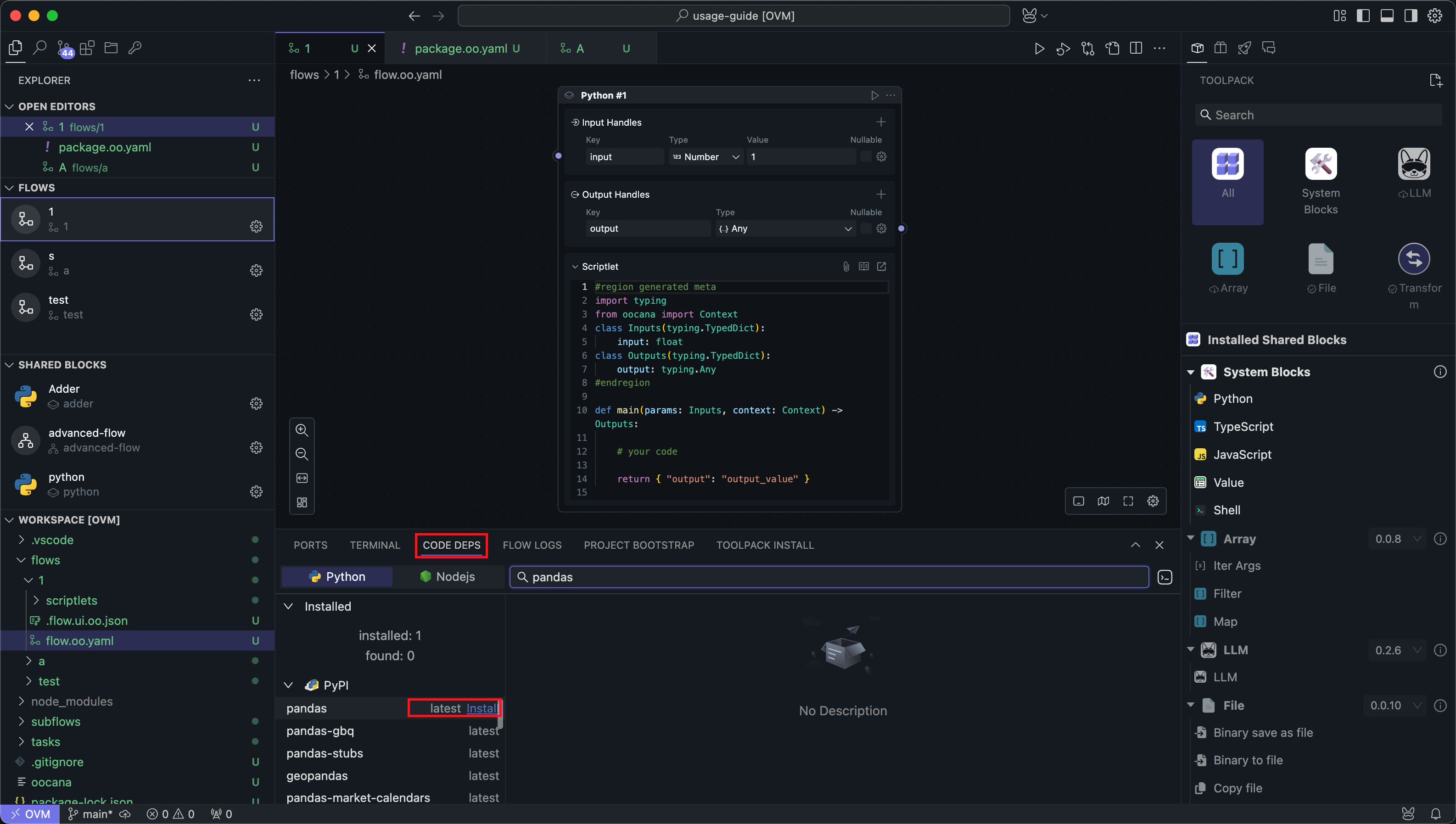
Dependencies installed this way automatically record version information in project files.
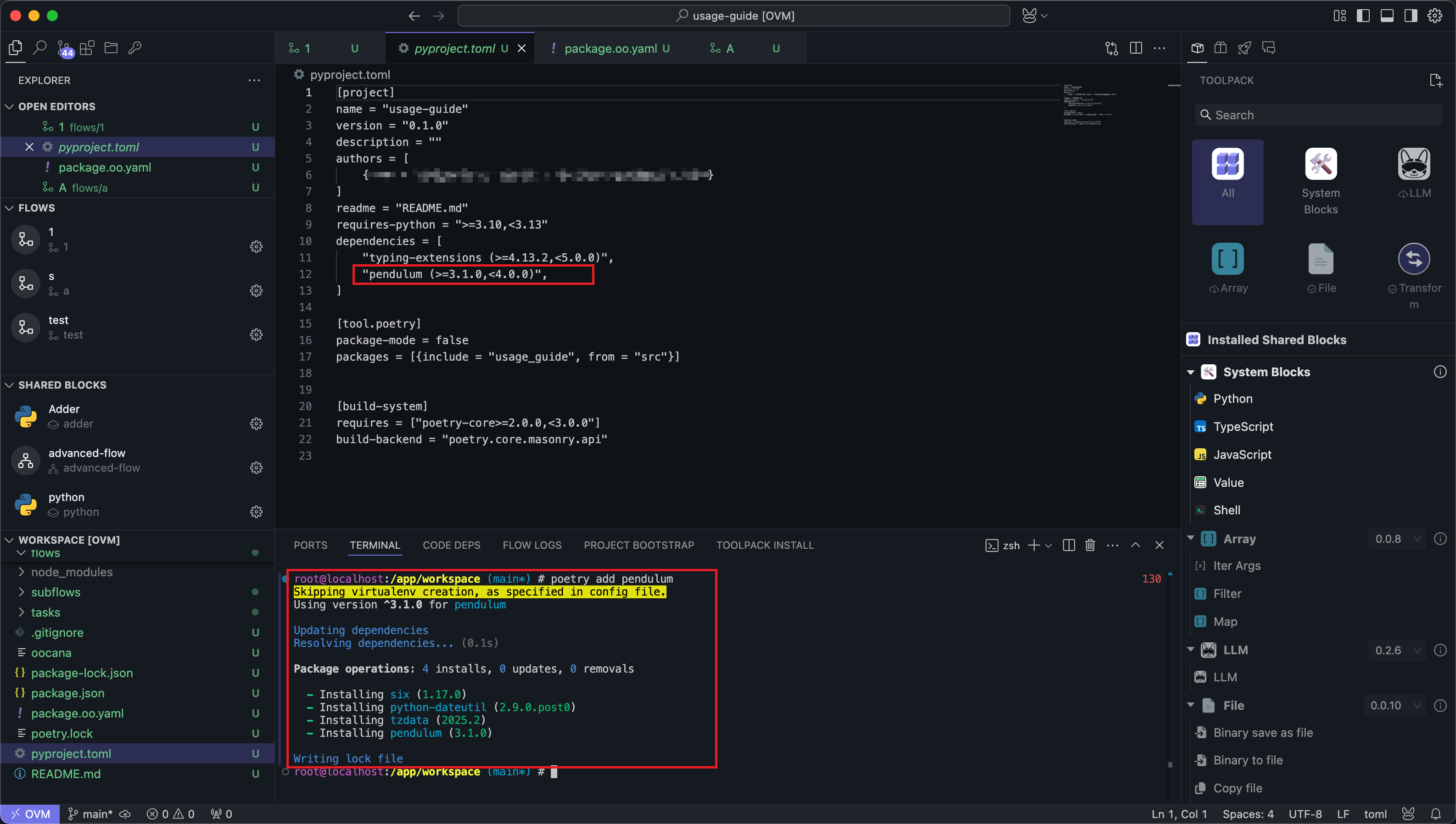
Python dependencies will be recorded in poetry.toml:
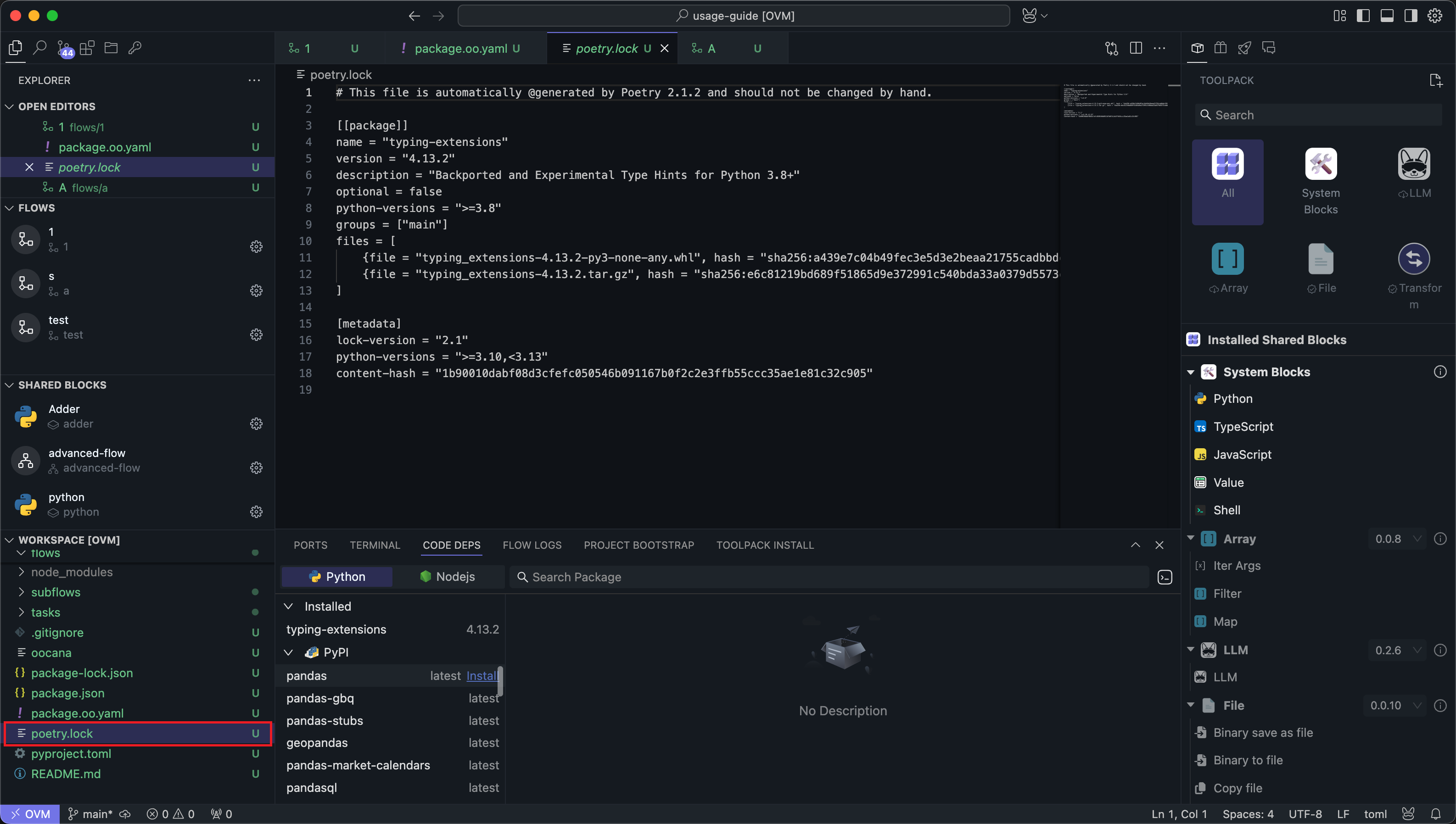
Node.js dependencies will be recorded in package.json:
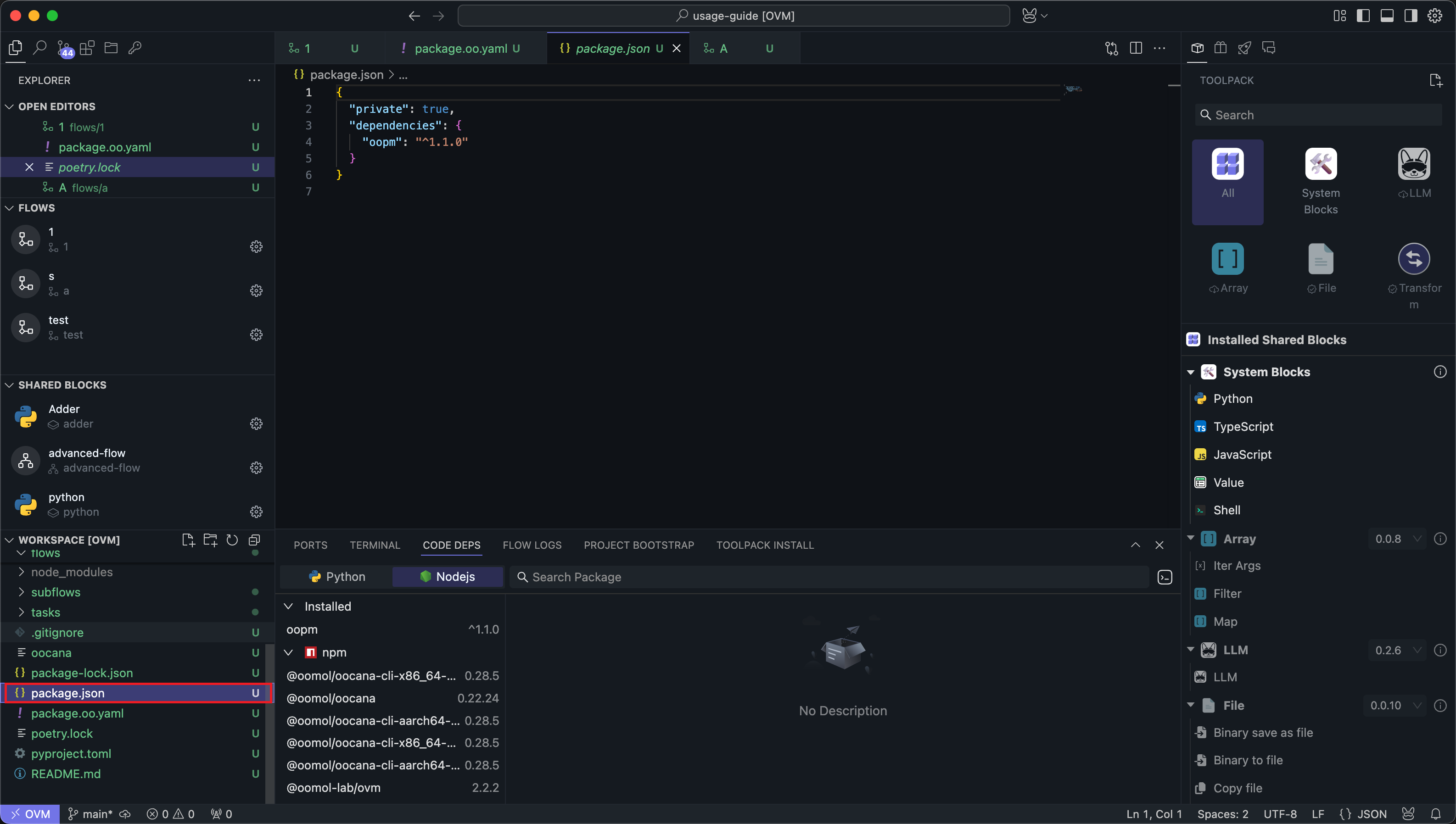
Because this search UI only exposes the latest version, install older versions through terminal commands instead.
Install Dependencies in the Terminal
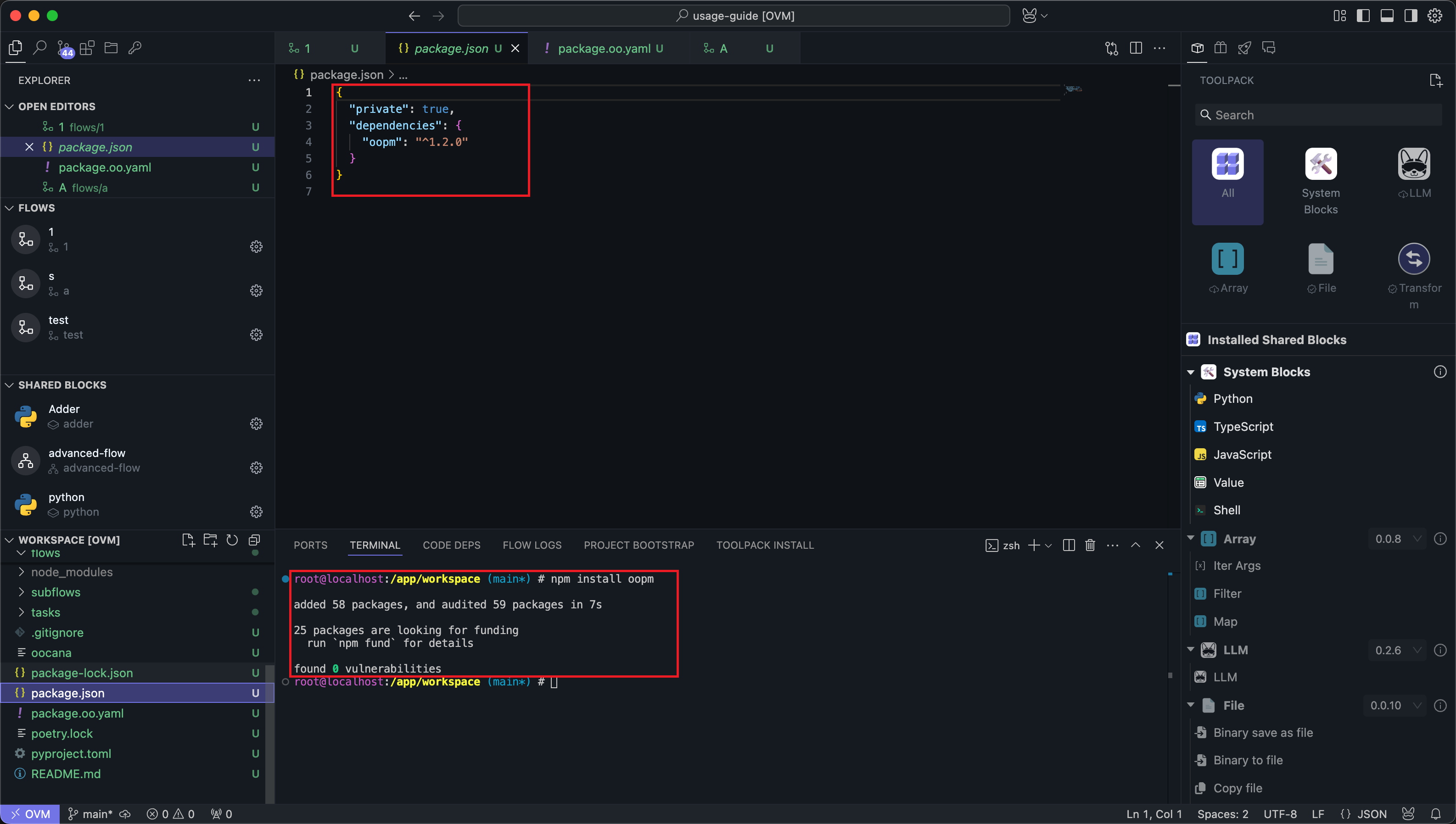
You can also install dependencies directly in the terminal and specify an exact version.
Python dependencies can be installed using Poetry commands:
Node.js dependencies can be installed using Npm commands:
OOMOL Studio does not restrict users to using the dependency management software described in the documentation. The documentation describes OOMOL Studio's default implementation.
Users can choose dependency management software freely, but make sure to implement a version management mechanism. Otherwise, it cannot be guaranteed that the dependencies installed when downloading the Package match the versions installed by the developer, which may cause workflows to fail to run properly.
Since each project is a container, the code dependencies you install in the project can be referenced anywhere within the project.